
Run your stream
with a tap on the tablet
Premium OBS Studio control
Switch scenes, record, stream and mute the microphone with keys on your phone and tablet. The current scene, the recording time and whether you are muted show right on the keys, so you never need to look at the OBS window.

- 1Record — a red border and the elapsed time while recording
- 2Stream — a long press starts or stops it, so it never goes live by accident
- 3Microphone — ✕ when muted
- 4Scenes — the current scene has a green border
A whole OBS page in one go
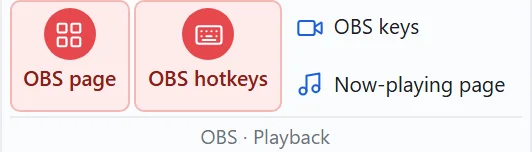
Press «OBS page» on the ribbon of the PC settings window and you get a page filled with your OBS scenes and the controls you use most. No need to make the keys one by one.
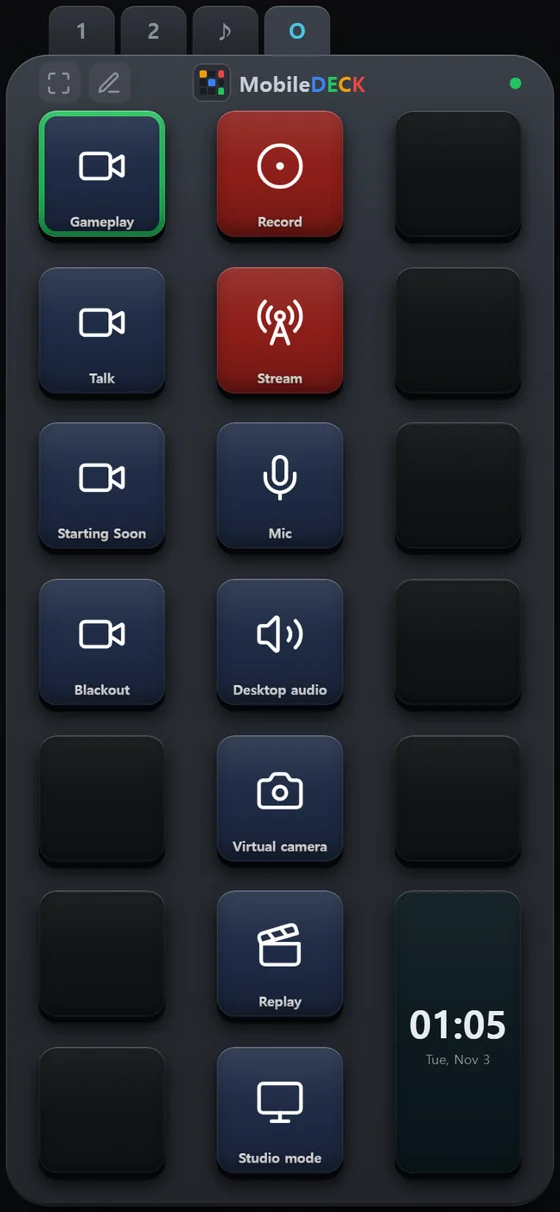
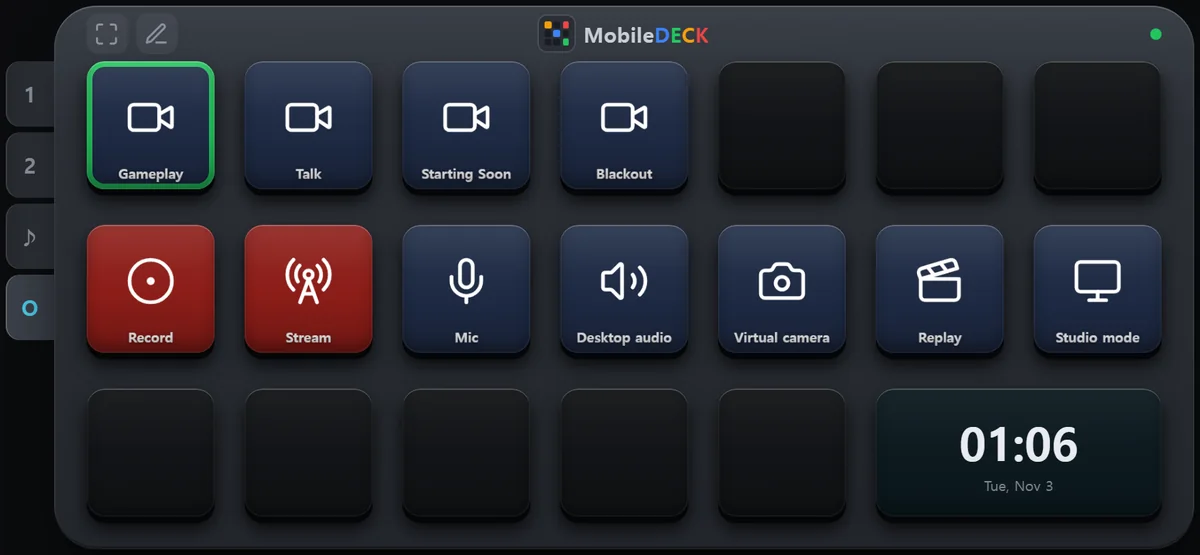
- Scenes in OBS order — if you add scenes in OBS, press «OBS page» again on that page. Only the new scenes are added to the empty keys.
- Microphone and desktop audio — finds the microphone and desktop audio set up in OBS and adds mute keys for them.
- Phone and tablet separately — the tablet's 10-key rows also fit pause recording and screenshot.
- Once made, they are ordinary keys: move them, rename them or delete them.
What a key can do
Select a key, press «OBS keys» on the ribbon, then choose what it does in the right-hand panel. Scene, source and input names come straight from OBS as a list.
Scenes · Sources
Switch scene · show or hide a source · turn a filter on or off · change the transition · toggle studio mode
Recording · Streaming
Start or stop recording · pause recording · start or stop streaming (long press) · save replay · virtual camera · screenshot
Audio
Mute · volume up · volume down — the key shows the current level in dB.
Media
Play or pause a media source · restart it from the beginning
Profiles · Scene collections
Switch between the profiles and scene collections you keep apart, such as one for streaming and one for recording, with a single key.
OBS hotkeys
The hotkeys you have set in OBS, as keys. More below.
Bring in the hotkeys you set in OBS
If you have assigned keys under «Hotkeys» in the OBS settings, open the list with «OBS hotkeys» on the ribbon and tick the ones you want. They go into the empty keys in order.
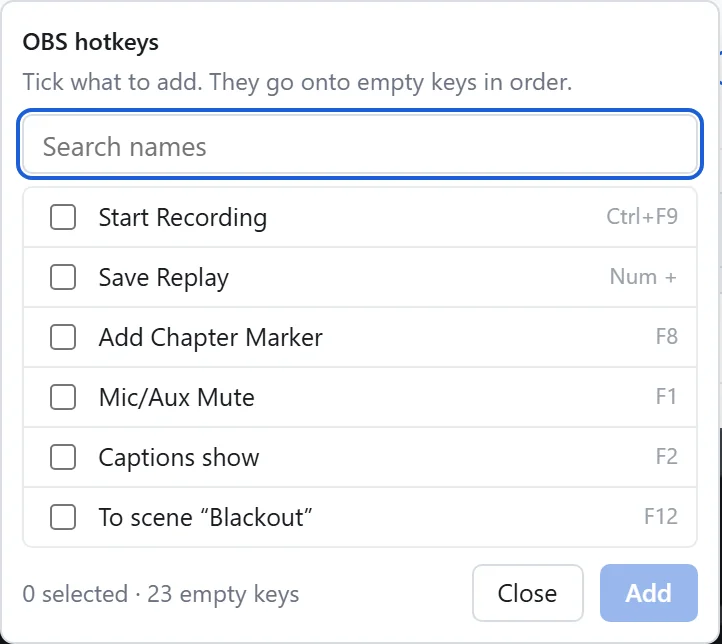
- Nothing is typed on the keyboard — press the key on your phone and OBS runs that hotkey's action directly.
- Source and scene hotkeys too — hotkeys tied to a particular source or scene, such as «Captions show» or «To scene Blackout», come in as they are (OBS 30.1 or later).
- Names as OBS has them — each key is named the way OBS names the hotkey, and you can rename it later.
- Hotkeys that are only on while held down (push-to-talk) do not suit a phone key, so they are left out of the list.
OBS, right on the keys
Change something in OBS itself and the phone keys follow at once. One look at the keys tells you what is on.
REC · LIVE
While recording or streaming, a red border appears and the time runs, such as «REC 12:34» or «LIVE 1:02:10».
Current scene
The scene on air has a green border. The current transition, profile and scene collection are green too.
Mute ✕
A muted input's key shows ✕. Volume up and down keys show the current level in dB.
Pause ❚❚ · Play ▶
❚❚ while recording is paused, ▶ while a media source is playing.
ON
ON for the virtual camera, the replay buffer, studio mode, and sources and filters that are switched on.
When OBS is closed
The OBS keys dim and show «OBS». Start OBS again and they reconnect by themselves.
Set up once
MobileDeck connects to OBS Studio on the same PC it is installed on.
- Start OBS Studio 28 or later.
- In OBS, open Tools → WebSocket Server Settings and turn on «Enable WebSocket server».
- In the MobileDeck settings window, select a key, press OBS keys on the ribbon, then «Load from OBS» in the right-hand panel. The connection details are stored only on this PC.
- When it shows «Connected», make a page with OBS page on the ribbon.
OBS control is a Premium plan feature (US$9.95 a month or US$99.95 a year, tax included). OBS Studio is free software made by the OBS Project; MobileDeck is not affiliated with the OBS Project.
OBS on the screen,
the controls in your hand
Get started — Premium US$9.95 a month
Back to MobileDeck home · Settings window guide · Contact — skseo@airirang.co.kr