MobileDECK

Windows app PC settings window

Lay out your keys
in the PC settings window

What each key on your phone or tablet opens is set in the settings window on your PC. Pick an action from the ribbon at the top, drag it onto the deck preview, and the change shows up on your phone straight away.

The MobileDeck PC settings window — a two-row ribbon at the top, phone and tablet and page tabs below it, the phone key layout preview on the left and the settings of the selected key (Excel) on the right
  1. 1Ribbon — actions, OBS and playback, import, pages, icons, deck skins
  2. 2Device and page tabs — Phone | Tablet, pages 1 · 2 · 3
  3. 3Key layout — exactly the deck your phone shows
  4. 4Selected key — name, target, icon, folder

Ten groups on the ribbon

Select a key, then choose on the ribbon what it should do. The groups are, in order: Action · OBS · Playback · Import · Pages · Key · Icons · Phone · Tablet · Rotation · Deck skin · Start · Language. In a narrow window the ribbon wraps onto two rows.

The whole settings window ribbon — Action, OBS · Playback, Import, Pages, Key, Icons, Phone · Tablet, Rotation, Deck skin, Start · Language
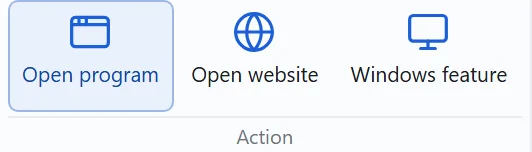
01Ribbon Action group — Open program, Open website, Windows feature

Action

Sets what the selected key does when you press it.

  • Open program — opens a program on the PC. If it is already running, its window comes to the front.
  • Open website — opens an address in your default browser.
  • Windows feature — 51 things you would normally reach with a shortcut, such as screenshots, Settings and Show desktop.
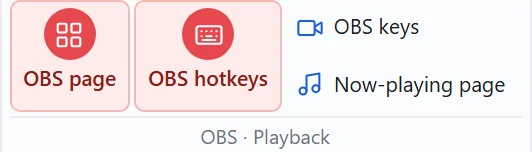
02Ribbon OBS · Playback group — OBS page, OBS hotkeys, OBS keys, Now-playing page

OBS · Playback

One button builds a whole page for you. These are Premium plan features.

  • Now-playing page — makes a new page of keys that control the music or video playing on the PC. See «Now-playing page» below
  • OBS page — makes a page with this PC's OBS scenes and keys for recording, streaming and mute. If you add scenes in OBS later, press it again on that OBS page and only the new scenes go into the empty keys.
  • OBS hotkeys — pick hotkeys you have set in OBS and turn them into keys. Nothing is typed on the keyboard — OBS runs them directly.
  • OBS keys — gives the selected key one OBS action, such as switching scene, recording, streaming or muting. OBS guide
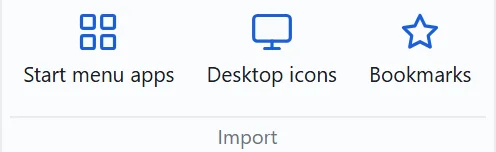
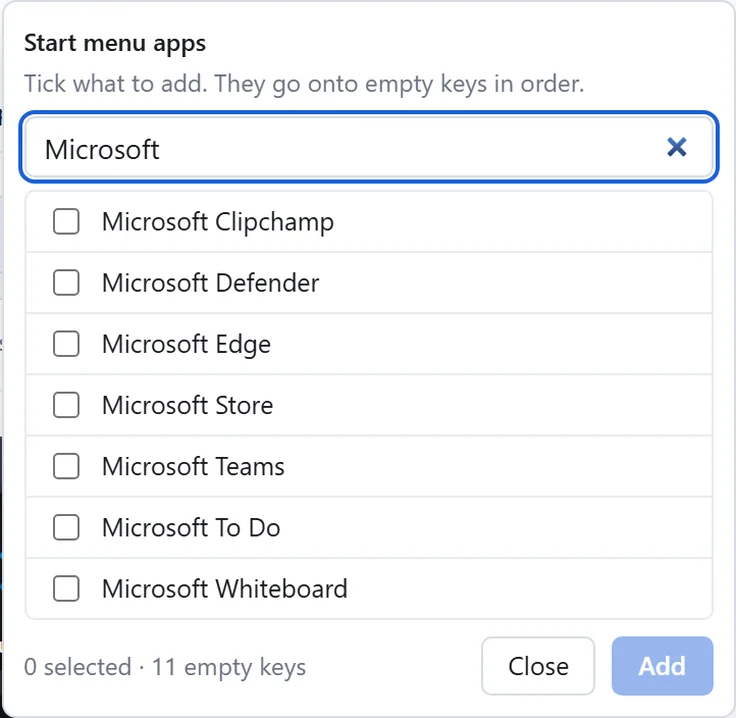
03Ribbon Import group — Start menu apps, Desktop icons, BookmarksThe Start menu apps window — «Microsoft» typed in the name search, a list of Microsoft apps with check boxes, and Close and Add buttons

Import

Fill many keys at once instead of making them one by one. What you tick goes into the empty keys in order.

  • Start menu apps — find apps by name in this PC's Start menu list.
  • Desktop icons — programs, shortcuts and folders on the desktop.
  • Bookmarks — Edge favourites and Chrome bookmarks become website keys, site icons included.
  • You can also drag items straight from the desktop, the Start menu or the favourites bar onto a key.
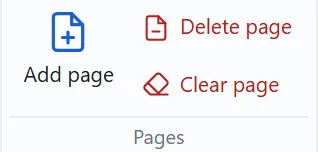
04Ribbon Pages group — Add page, Delete page, Clear page

Pages

Out of keys? Add pages. On the phone you swipe left and right between them.

  • Add page — one more empty page.
  • Delete page — removes the current page.
  • Clear page — empties every key on the current page. While you are editing a folder, only that folder's keys.
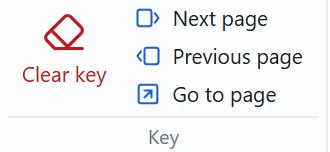
05Ribbon Key group — Clear key, Next page, Previous page, Go to page

Key

Works on the one key you selected.

  • Clear key — removes the key's action and picture.
  • Next page · Previous page · Go to page — keys that turn the page when pressed. On the phone deck you swipe instead, so these are hidden there.
06Ribbon Icons group — Upload picture, Remove picture, Background, Frequent icons, More
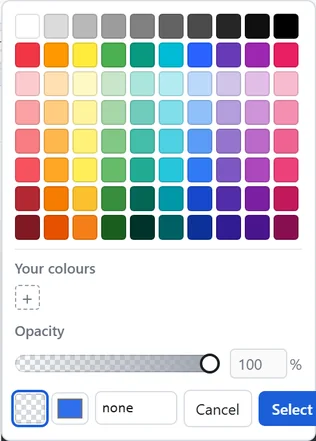
The colour picker — 80 colours, your own colours, opacity, transparent, and Cancel and Select buttonsThe icon window — theme tabs and icons sorted into categories such as basics, work and media

Icons

Sets a key's picture and colour. The key on your phone changes the moment you do.

  • Upload picture · Remove picture — a photo or picture file fills the whole key. Remove it and the background colour comes back.
  • Background — 80 colours, «Your colours» and opacity. Try a colour, then press «Select» to keep it, or «Cancel» to leave it as it was. On a light background the icon and name turn dark. Transparent shows the icon with no background.
  • Frequent icons · More — every icon by category (basics, work, media, tools, communication…) in outline, filled and two-tone themes.
07Ribbon Phone · Tablet group — Connect phone, Connect tablet

Phone · Tablet

Turns a device into your deck. Press it and a QR appears; scan it with the phone camera and the deck opens in the browser.

  • It connects at home and away from home.
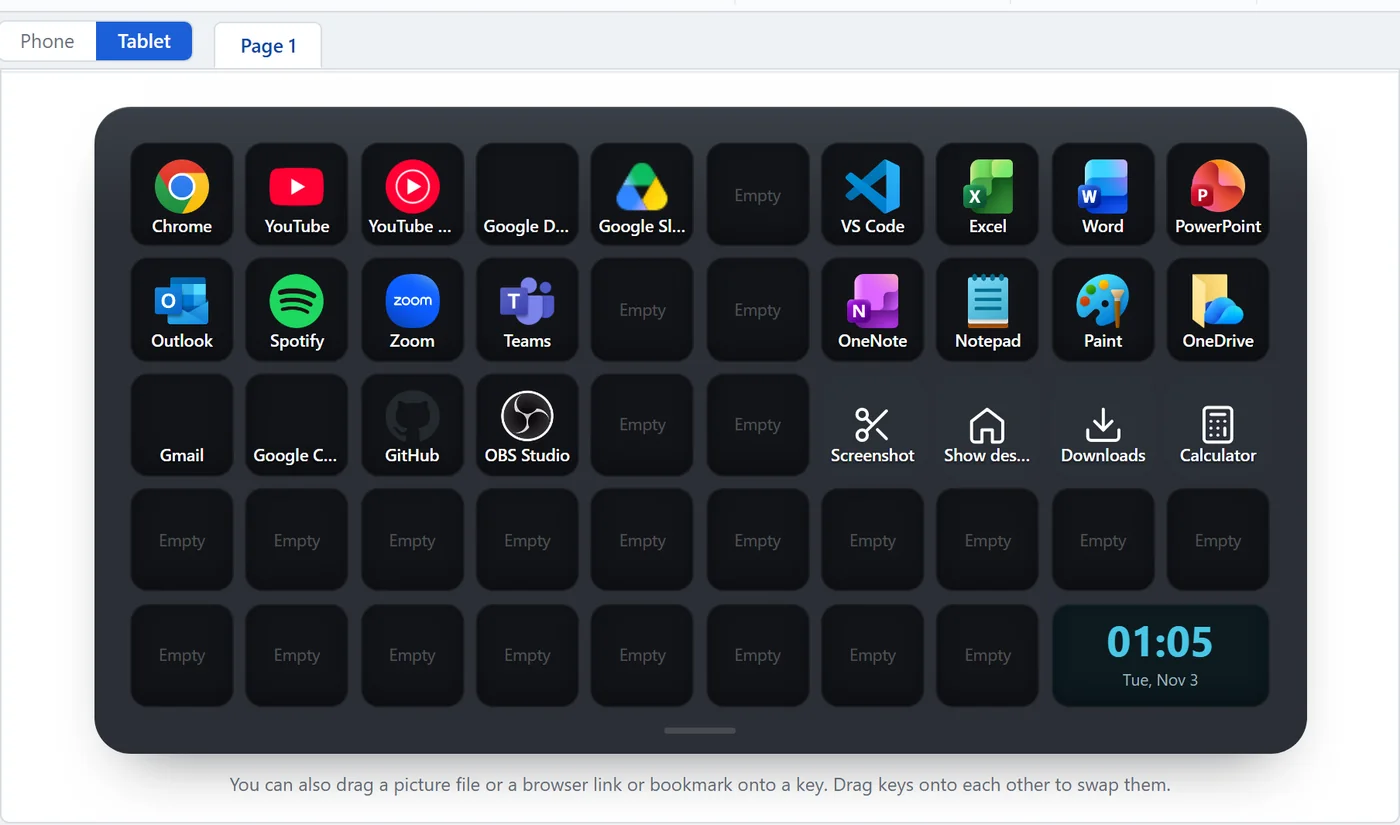
  • A tablet has a 10 × 5 layout that you edit separately from the phone.
  • You can see connected devices and disconnect them in this window.
08Ribbon Rotation group — Auto rotate, Landscape, Portrait

Rotation

Sets which way the deck preview in the settings window faces.

  • Auto rotate — turn the phone or tablet and the preview turns with it.
  • Landscape · Portrait — choose one and the preview stays that way (auto rotate turns off).
09Ribbon Deck skin group — Default, Base colour, Cherry blossom, Neon, White, Gold

Deck skin

Chooses how the phone and tablet deck looks. Every connected device changes together. See «Deck skins» below

  • Default · Cherry blossom · Neon · White · Gold — five skins.
  • Base colour — picks the body colour of the default skin from the colour picker.
  • The background, body, empty keys, tabs and clock cell change; key colours and pictures you set yourself stay as they are.
10Ribbon Start · Language group — Get started, and the language switch

Start · Language

Help for the first steps, and the window's language.

  • Get started — opens the first-steps list: link your account, connect a phone, try a key, drag in icons. Each step ticks itself once it is done.
  • 한국어 · English — switches the settings window between Korean and English. The tray menu follows the next time the app starts. The deck on the phone follows the phone's own language.

Lay it out exactly as your phone shows it

The deck in the middle has the same layout as the phone or tablet screen. Change it here and the device follows straight away.

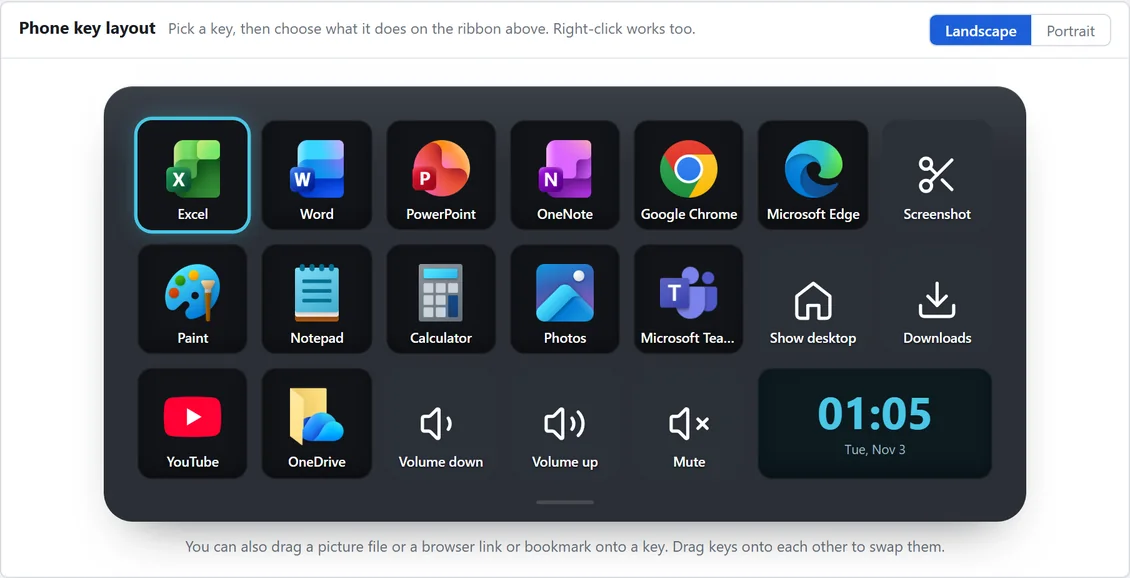
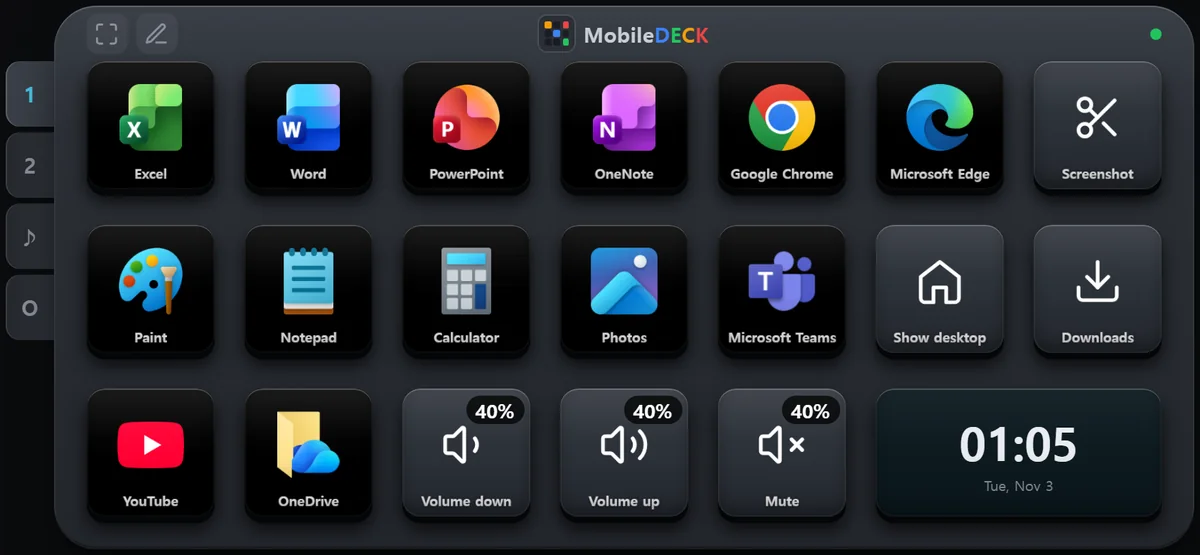
The phone key layout preview in the settings window — 7 × 3 keys in landscape (Office, browsers, Paint, Windows features, volume) and a clock in the large cell
Phone key layout — 7 × 3 in landscape, the large cell at the bottom right is the clock
  • Select a key — click it, or right-click it.
  • Swap places — drag one key onto another and they trade places.
  • Clear — drag a key onto the bin below to empty it.
  • Drag and drop — drop a picture file, a link or favourite from your browser, or a desktop or Start menu item onto a key and it becomes that key.
  • Pages stay in step — turn the page on the phone and the settings window turns with it; press a page tab in the settings window and the phone follows.

Every key in detail

The right-hand panel shows the settings of the selected key. What it offers depends on the kind of key.

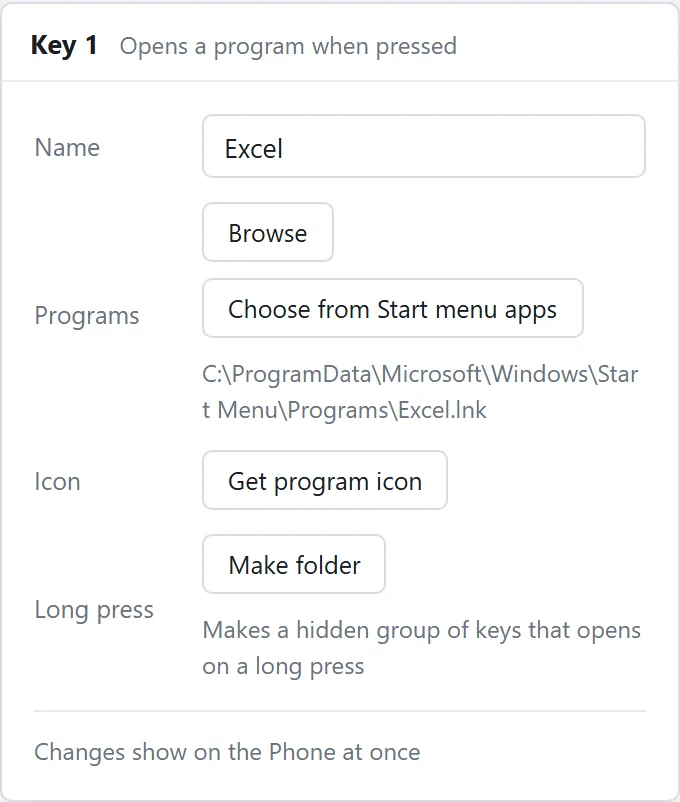
Program key settings — name, Browse, Choose from Start menu apps, Get program icon, Make folder

Program key

Choose the program file with «Browse», or «Choose from Start menu apps». «Get program icon» gives the key that program's own icon.

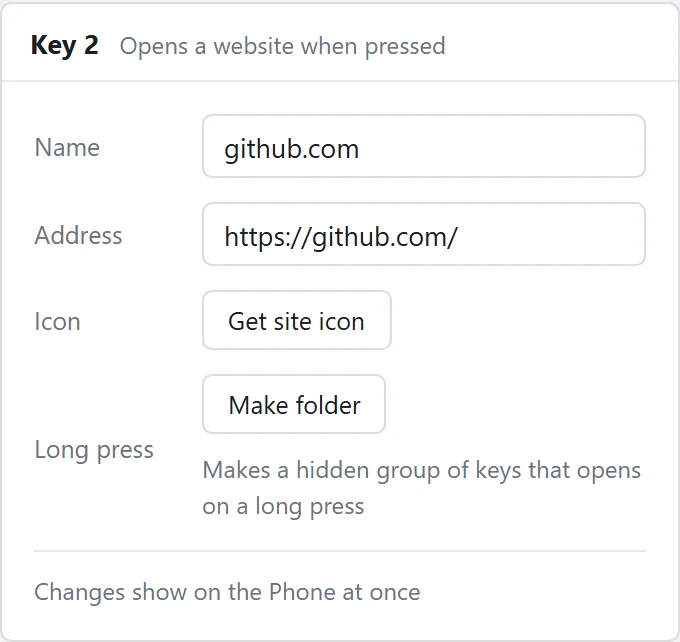
Website key settings — name, address, Get site icon, Make folder

Website key

Enter an address and the site's icon is fetched for you. You can also drag an address in from the favourites bar.

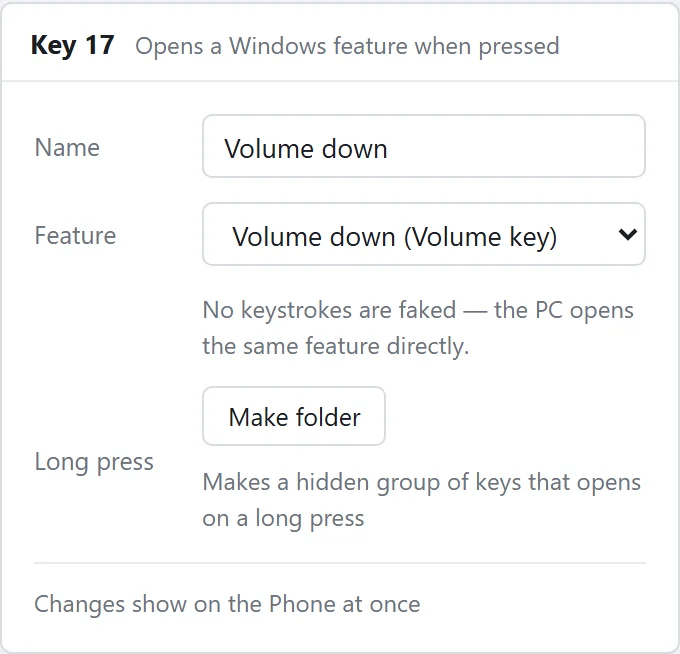
Windows feature key settings — Volume down (volume key) chosen from the feature list

Windows feature key

Choose from the list — sound (volume, mute), media (play, pause, previous, next, skip 10 seconds), screenshots, windows and desktop, Windows panels, Settings shortcuts, Windows apps and folders.

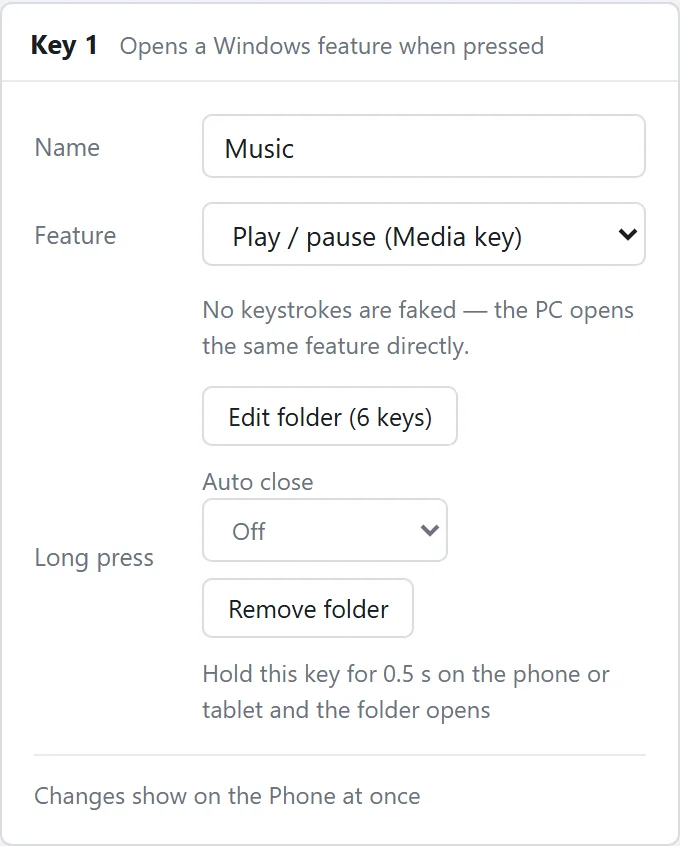
Settings of a key with a folder — Edit folder (6 keys), Auto close, Remove folder

Folders

«Make folder» puts a hidden group of keys under a key. Hold the key on the phone for half a second to open it, and the top-left key takes you back. Fill it with «Edit folder».

Now-playing page

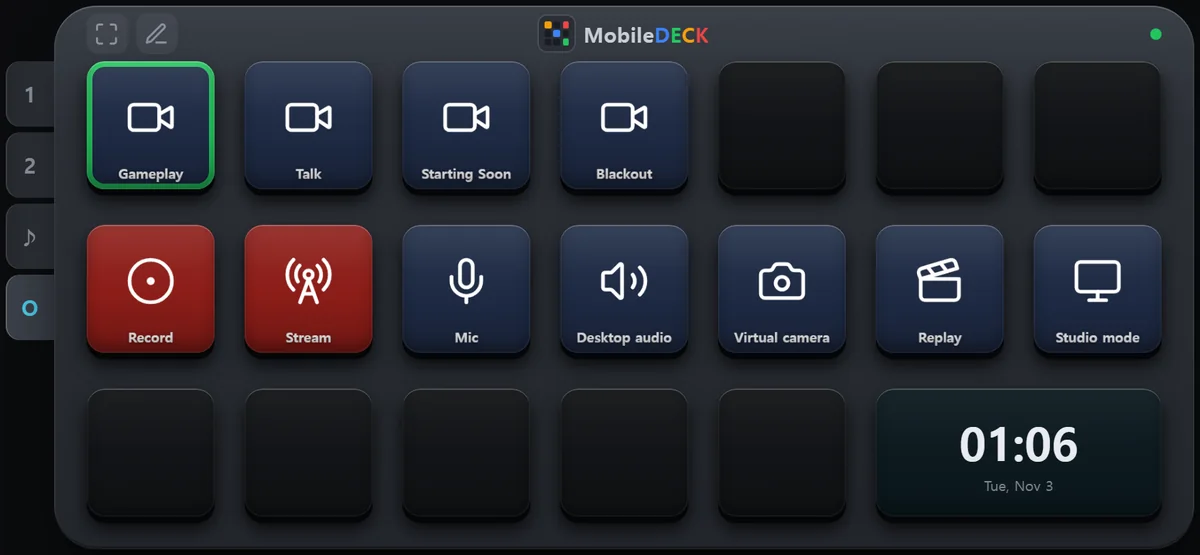
Press «Now-playing page» in the ribbon's OBS · Playback group and you get a page that controls the music or video playing on your PC. On the phone and tablet its tab shows ♪. This is a Premium plan feature.

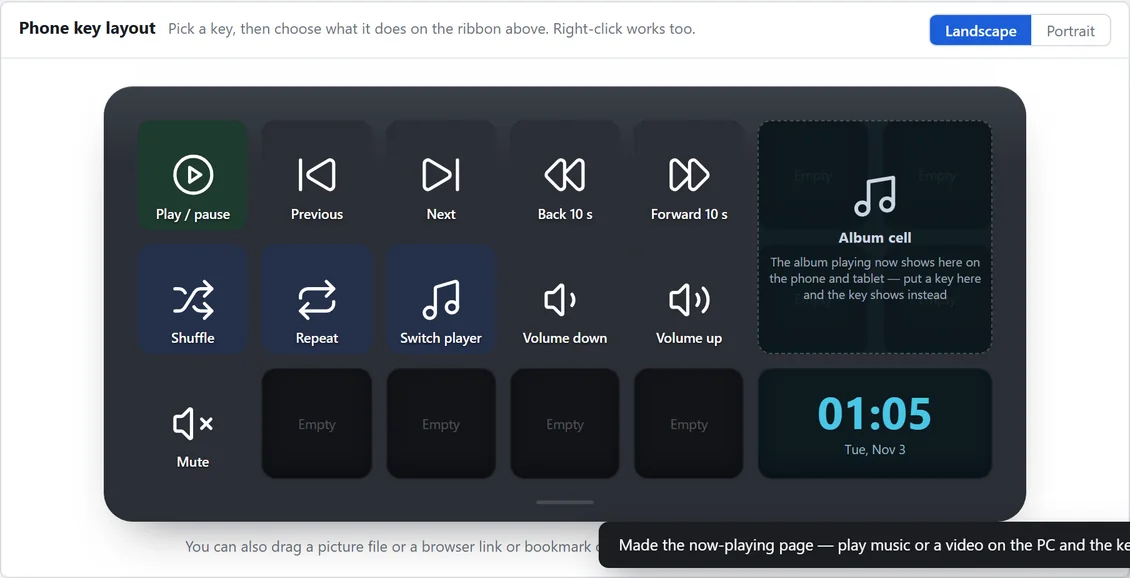
A now-playing page made in the settings window — play, previous, next, skip 10 seconds, shuffle, repeat, switch player and volume keys, with the album cell left empty above the clock
The now-playing page in the settings window — the four cells above the clock are left free for the album cell
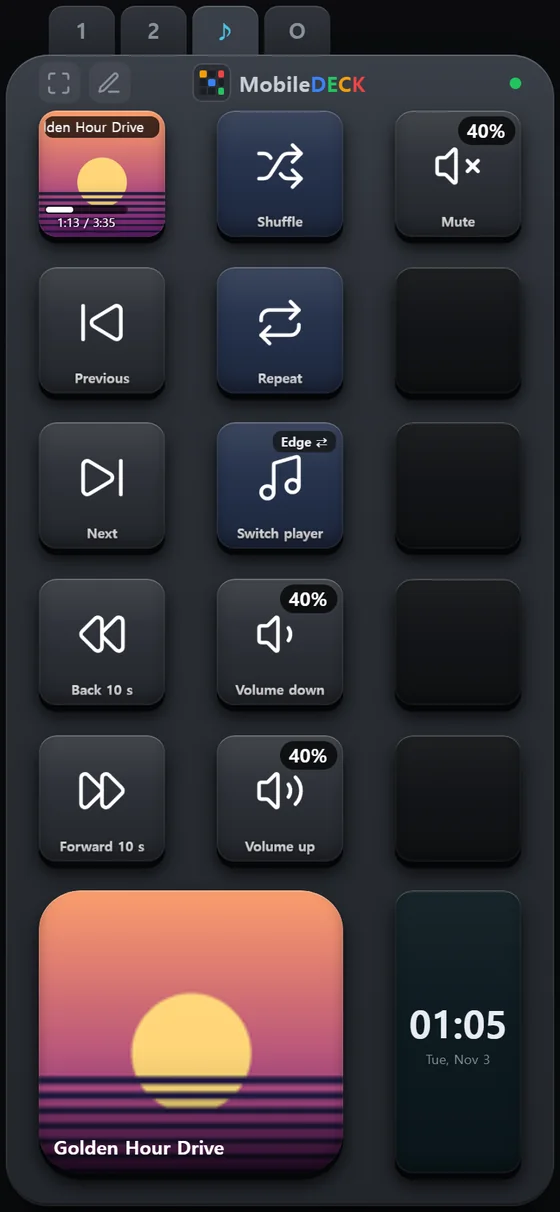
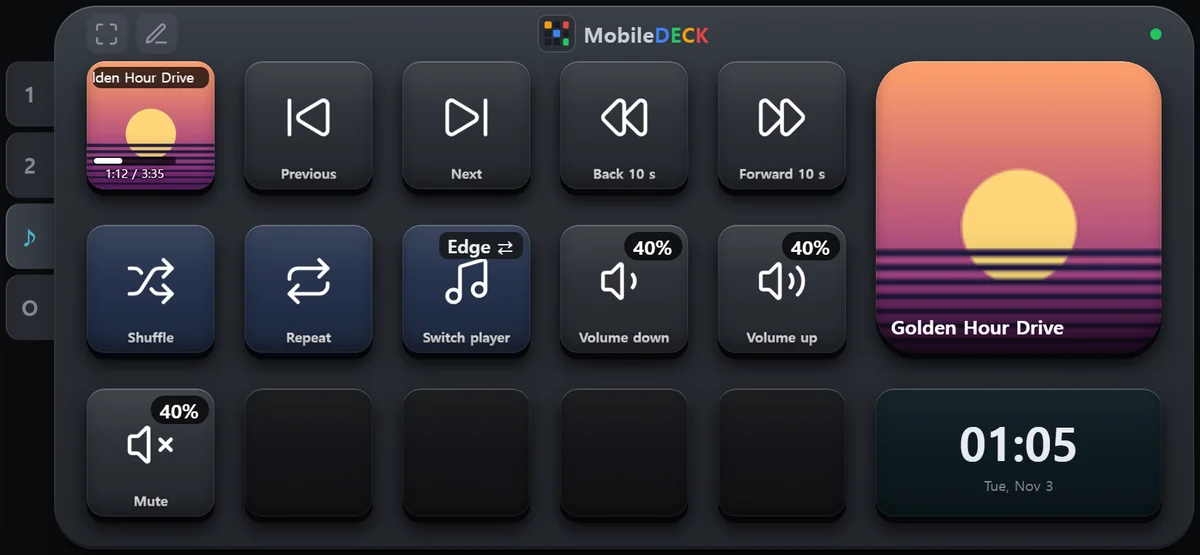
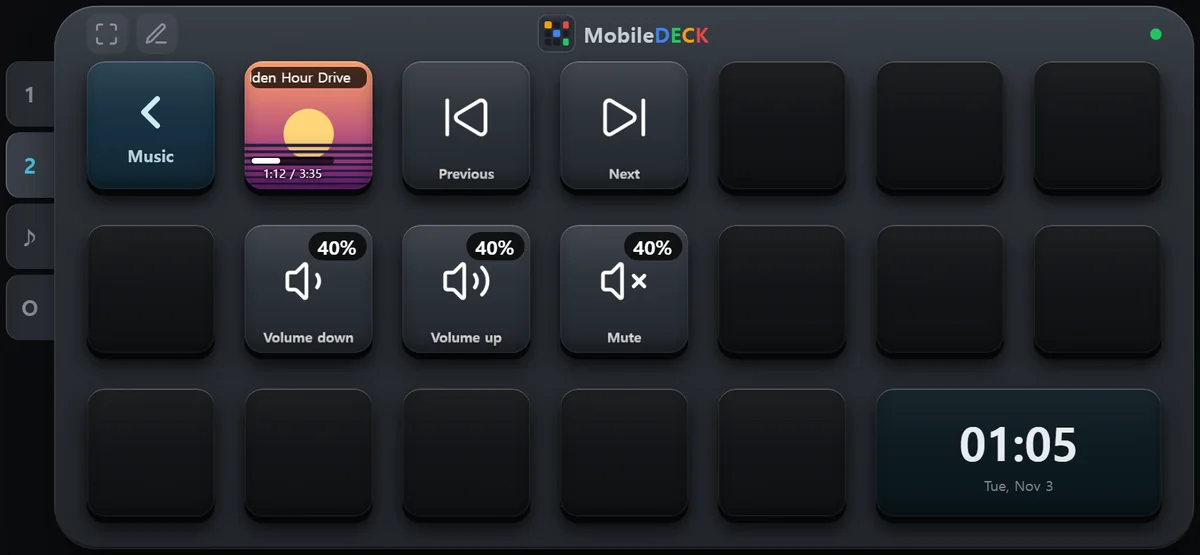
  • Play · Previous · Next · Back 10 s · Forward 10 s — the play key shows the current track's album art and title, with a progress bar such as «1:12 / 3:35».
  • Shuffle · Repeat — work only when the player supports them. Music playing in a browser cannot be shuffled or repeated from here, so those keys appear dimmed as «Not supported».
  • Switch player — when several programs are playing, chooses which one you control (for example Edge ↔ Chrome). The key shows the current player's name. Two tabs in the same browser count as one.
  • Volume down · Volume up · Mute — the key shows the current volume.
  • Like any other keys, you can move or delete them and put other keys in the empty cells.
The now-playing page on a phone in portrait — a play key with album art, previous, next, skip 10 seconds, shuffle, repeat, switch player and volume keys, and a large album cell and clock at the bottom
Portrait — the large cell at the bottom is the album cell
The now-playing page on a phone in landscape — the current track's album art and title in the 2 × 2 space above the clock
When the four cells above the clock are empty, the current track's album art fills them
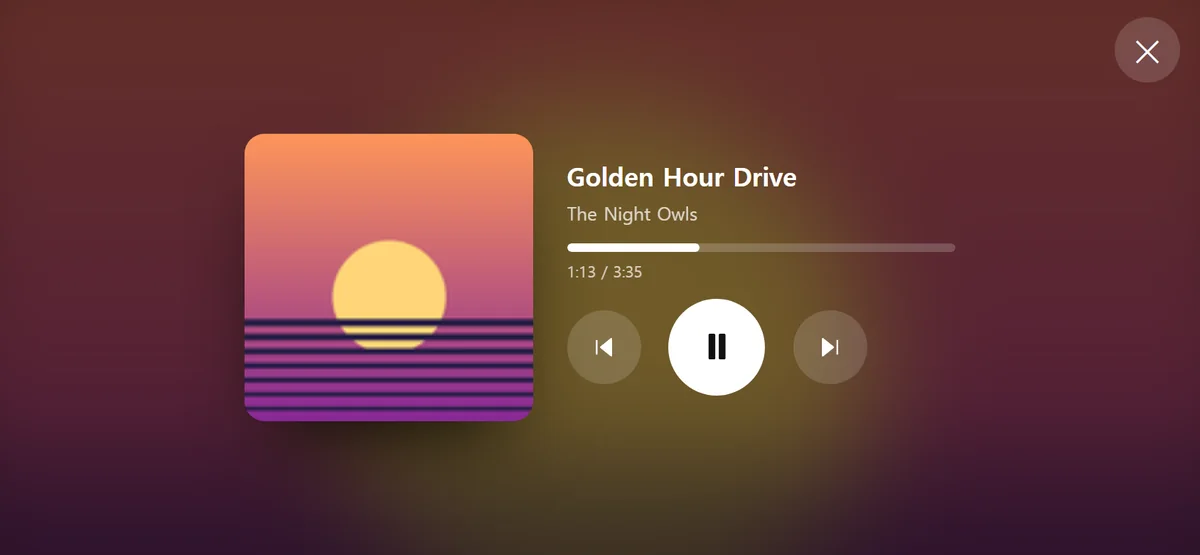
The album window — large album art in the middle, the track title, artist, progress bar and previous, pause and next buttons on the right, and a close button at the top right
Hold the play key or tap the album cell to open the album window
  • Album cell — appears only when the four cells above the clock have no keys. Put a key there and the key shows instead. It hides while a folder is open or while you are editing.
  • Album window — shows the player's album art large, with the track title, artist, a progress bar and ⏮ ⏯ ⏭ buttons. The buttons press that page's previous, play and next keys. ✕, a tap outside or turning the page closes it.
  • Players that only provide small album art may look blurry when enlarged. The album art is whatever the player tells Windows.
The OBS page on a phone in landscape — scene keys and record, stream and mute keys

OBS page

Press «OBS page» in the ribbon's OBS · Playback group and you get a page with this PC's OBS scenes and keys for recording, streaming and muting the microphone. The current scene, the recording time and mute show on the keys. This is a Premium plan feature.

More about OBS

Deck skins

Choose one under «Deck skin» on the ribbon and every connected phone and tablet changes with it. With the default skin, «Base colour» changes the body colour. Key colours and pictures you set yourself stay as they are.

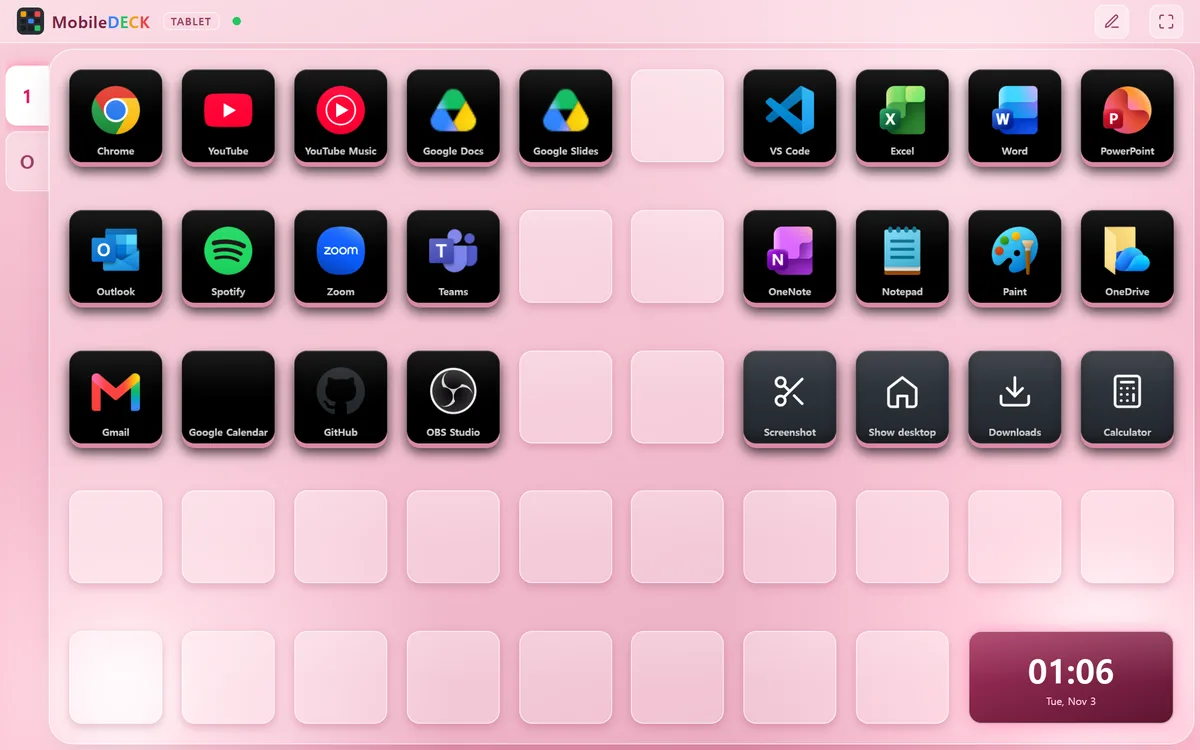
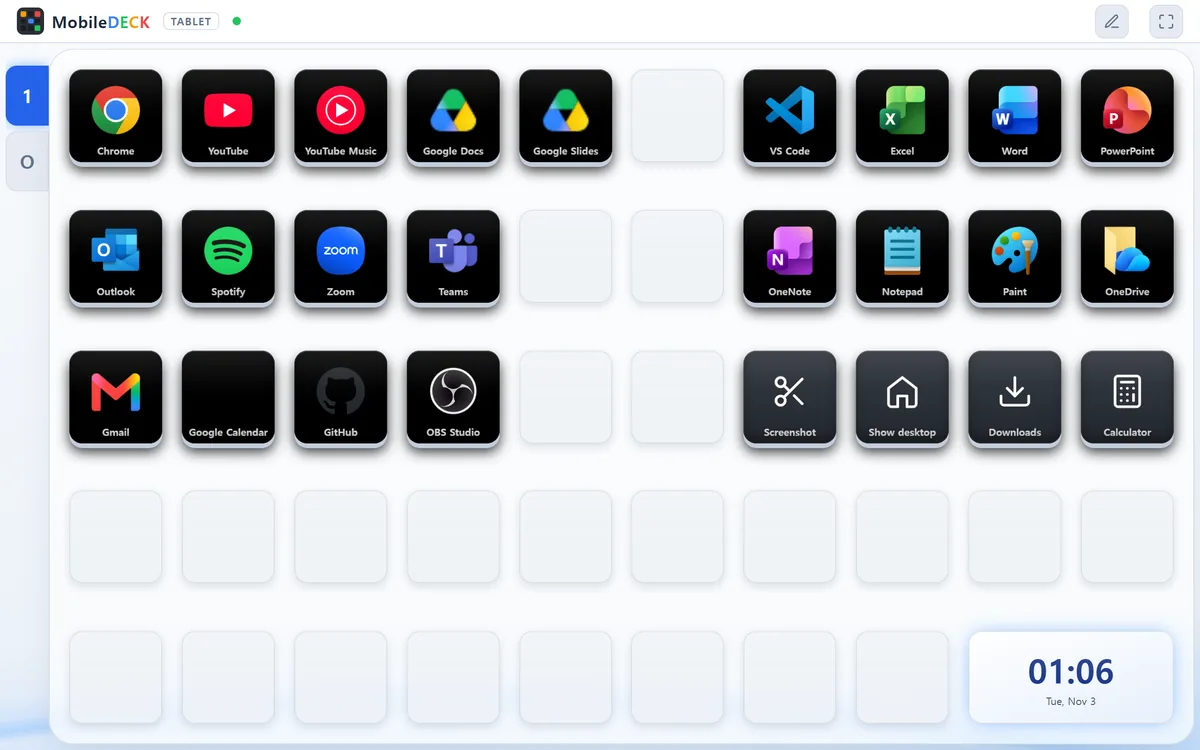
A tablet deck in the Cherry blossom skin

Cherry blossom

A light pink background with glassy keys.

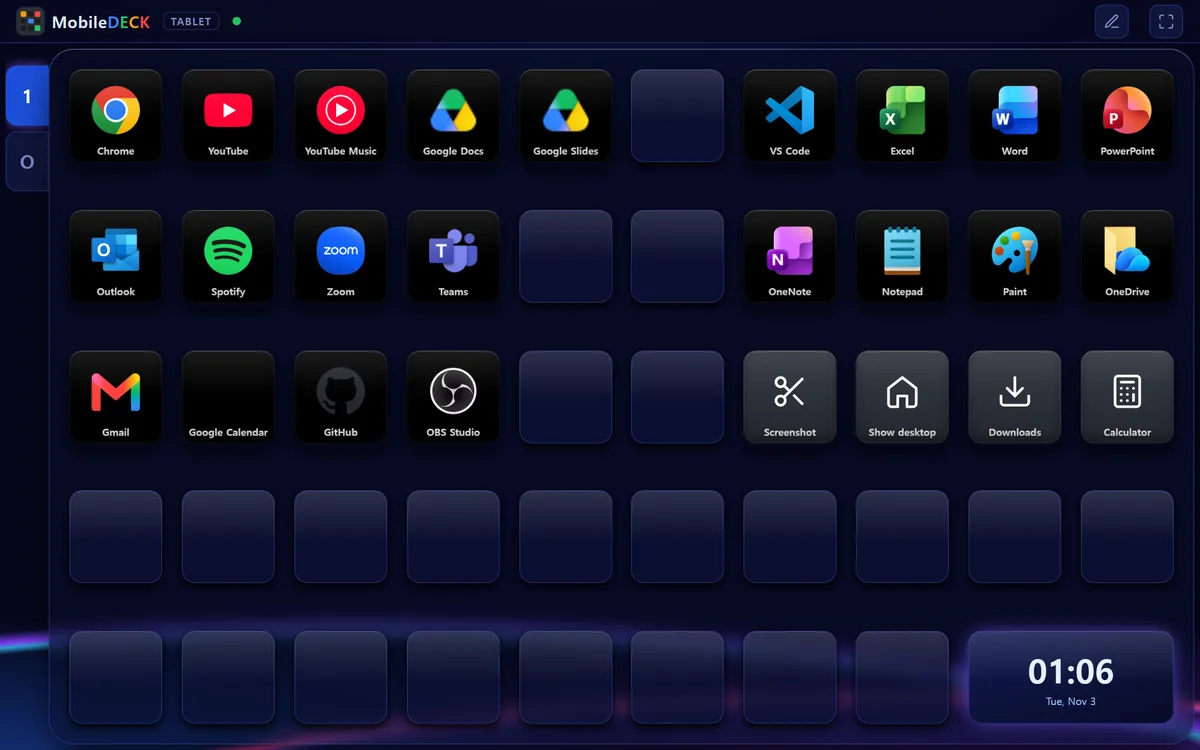
A tablet deck in the Neon skin

Neon

Deep navy with blue and purple light.

A tablet deck in the White skin

White

A white background with blue accents.

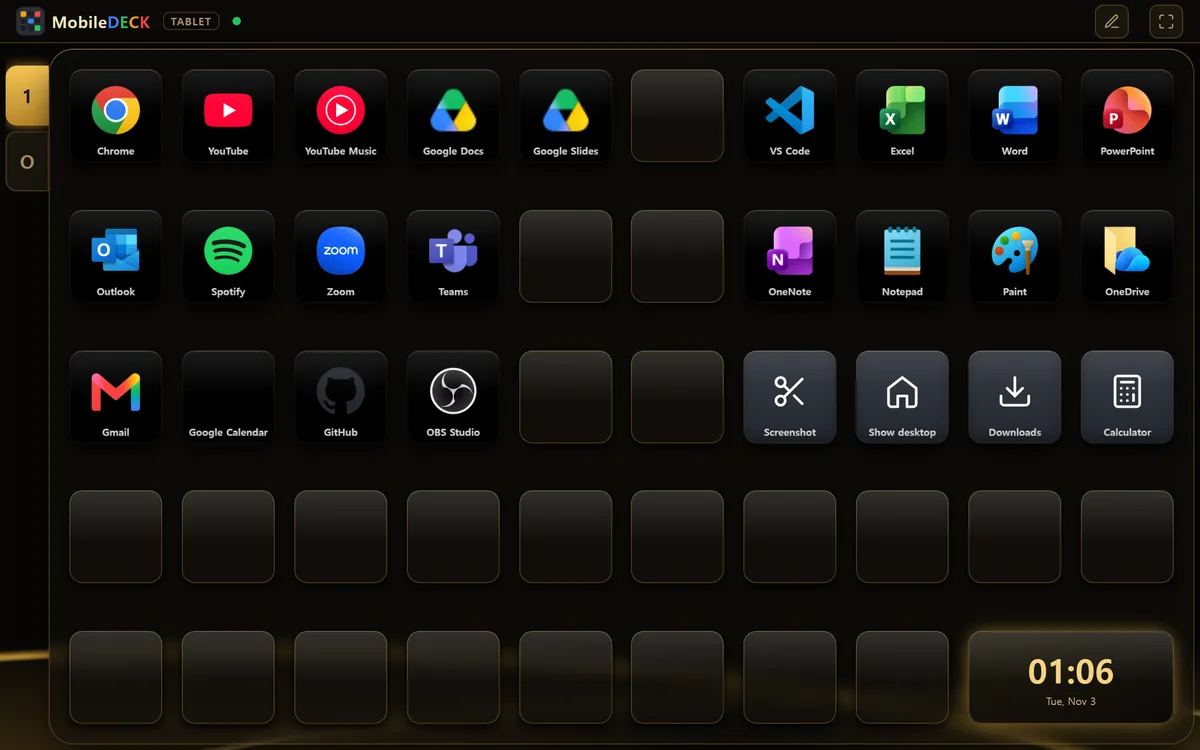
A tablet deck in the Gold skin

Gold

A black background with gold borders.

The tablet gets its own 10 × 5

Choose «Tablet» on the tab row to edit the tablet's layout. It connects to the same PC as the phone, but its keys, pages and pictures are separate.

The tablet key layout in the settings window — a 10 × 5 grid with program, website and Windows feature keys in the top three rows and a clock in the large cell at the bottom right

This is how it looks on the phone

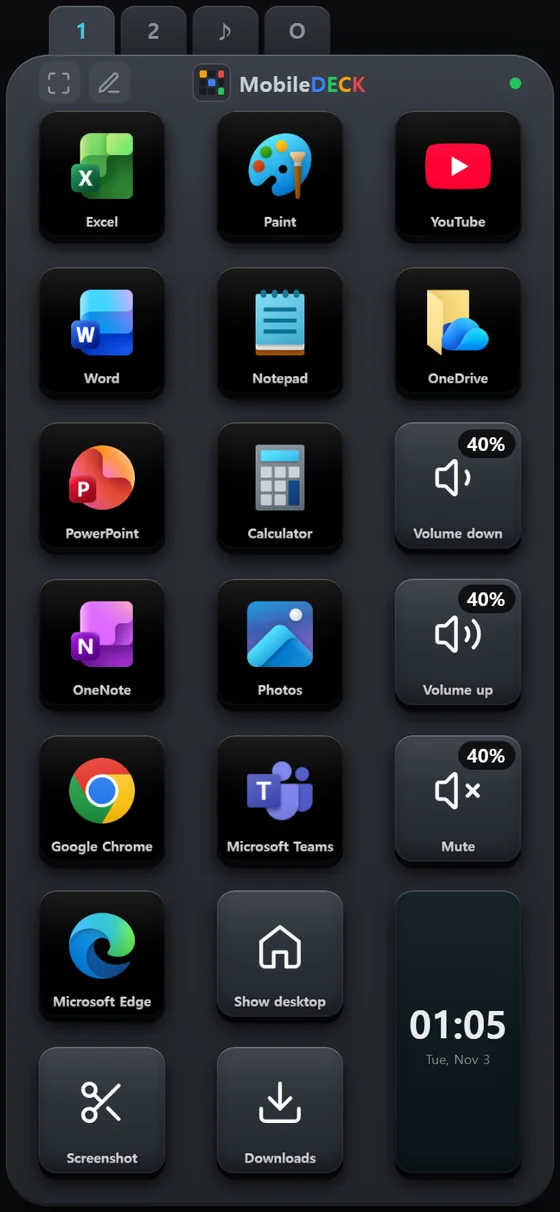
The layout you make in the settings window appears as it is in the phone's browser. Swipe left and right to turn pages, and use the pencil button to move, swap or clear keys on the phone too.

A phone in portrait on page 1 — Office, Paint, browser and Windows feature keys, volume keys showing 40%, and a clock in the large cell
Portrait — program keys on page 1
A phone in landscape — 7 × 3 program keys and a clock
Turn the phone and the deck turns too
A folder opened on a phone in landscape — a back key at the top left, a play key showing the album art, previous and next, and volume and mute keys showing 40%
A folder opened with a long press — volume and play keys side by side

Handy touches

Things you can do right from the phone, without walking over to the PC.

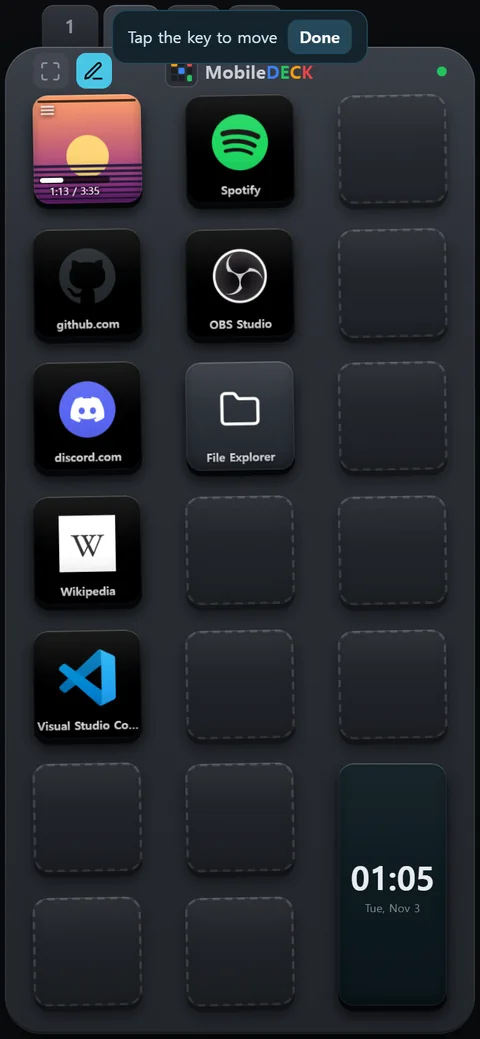
Moving a key on the phone — pencil, then the key, then the new spot

Move keys right on the phone

  1. Edit mode — keys wiggle and empty spots show a dotted outline on the phone deck
    1 · Pencil button

    Press the pencil under the deck: the keys wiggle and empty spots show a dotted outline.

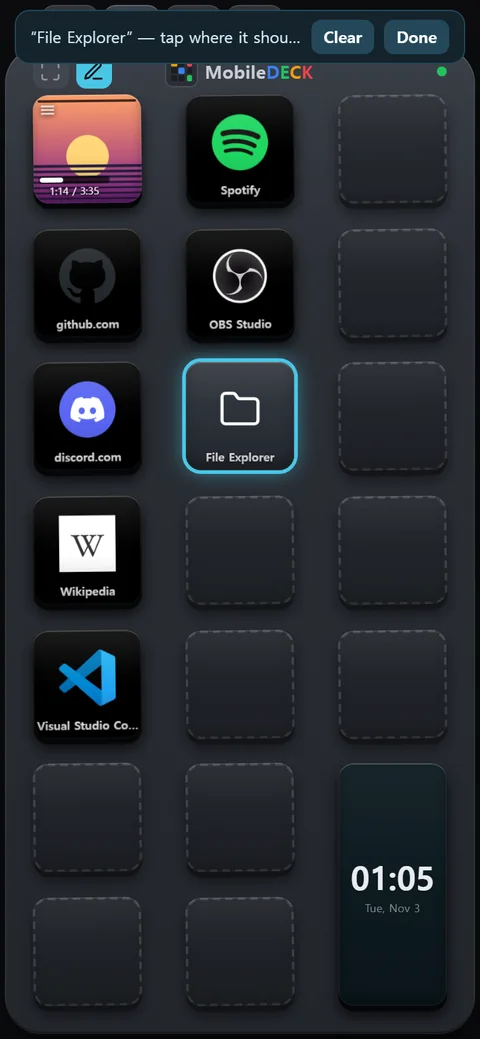
  2. The File Explorer key selected — the bar at the top asks where it should go, with Clear and Done
    2 · The key to move

    Press a key and the bar at the top shows «tap where it should go». Press «Clear» in the bar twice to empty that key.

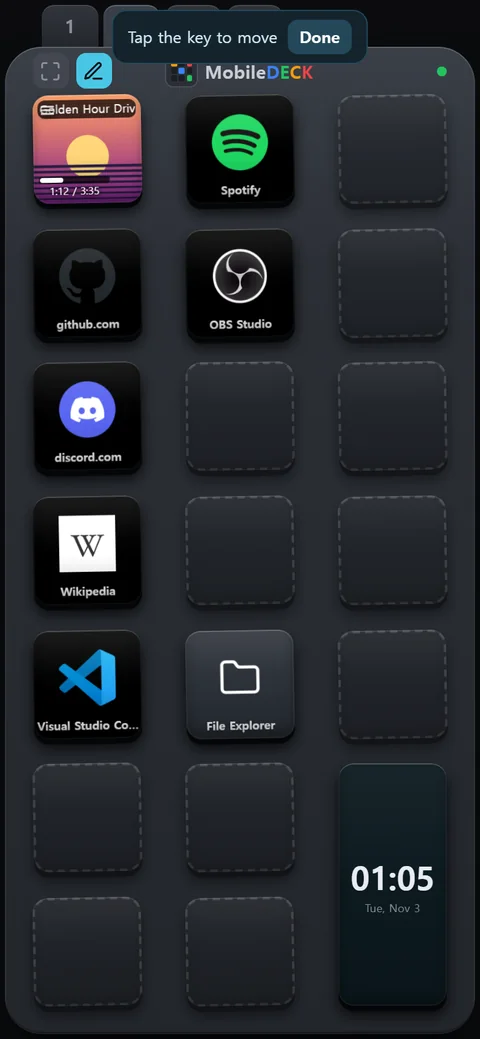
  3. The phone deck with the File Explorer key moved to an empty spot
    3 · The new spot

    Tap an empty spot and the key moves there; tap a spot with a key and the two swap. Turn the page to move it to another page. Press «Done» when you are finished.

  • Keys inside a folder move only within that folder.
  • The new layout is saved on the PC and shows up in an open settings window straight away.
  • What a key opens (its action, name and picture) cannot be changed on the phone — only in the settings window.

Pages stay in step

Turn the page on the phone and the settings window turns with it; press a tab in the settings window and the phone follows.

Swipe to turn pages

Swipe the deck left or right to turn the page, or jump straight there with the number tabs at the top.

Full screen like an app

Add it to the home screen from the browser and it opens like an app, with no address bar.

Press and vibration

The key sinks the moment you press it and answers with a short vibration.

PC status on the keys

The volume, the album art and title of what is playing, and a progress bar such as «1:12 / 3:35» appear on the keys.

Connection notices

If you press a key and the PC does not answer, the phone tells you. When the PC is back, the screen comes back with it.

Set it up on the PC,
press it on the phone

Get started — from US$5.95

Back to MobileDeck home · Contact — skseo@airirang.co.kr